Allow InfoTrust Remote Access to PC
Your browser and operating system will put up a lot of warnings to stop the download and execution of this remote software. We recommend viewing the guide for help on getting this to run.

Your browser and operating system will put up a lot of warnings to stop the download and execution of this remote software. We recommend viewing the guide for help on getting this to run.
This is the free version of FortiClient's VPN software which lacks latest features. It is currently behind by a few minor versions as well.
All downloads point to official Microsoft links. Most users on Windows with Office 365 subscriptions can click the first Download Office 365 button; otherwise, view all editions.
Using Windows without a Microsoft account is usually the preferred choice. Follow the steps in the guide before turning on your new computer.
Take a look at all the Windows software that we believe to be the best for most users.
A list of useful free websites to modify PDFs, stay secure, and troubleshoot issues.
1If you didn't download the tool yet, download here.
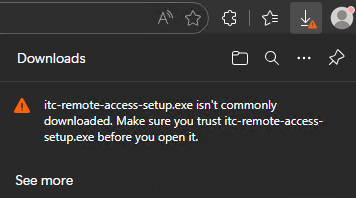
2We are using Microsoft Edge as an example, but all browsers will try and stop you from running this program.
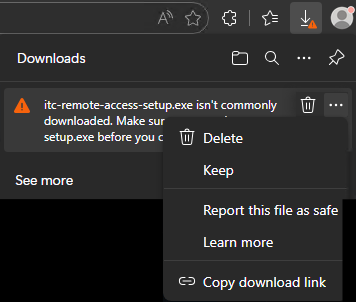
3Click the 3 dots inside the downloads window and select Keep.
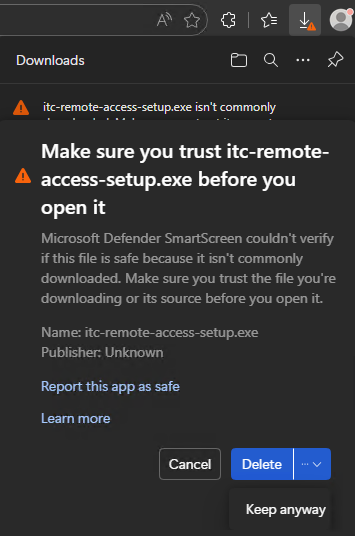
4Another warning may appear from SmartScreen within the browser. Select the down arrow and select Keep anyway.
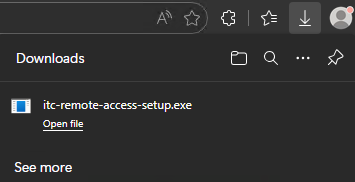
5You may open the file when all these warnings are gone. It's possible none of the above warnings took place and you start at this spot.
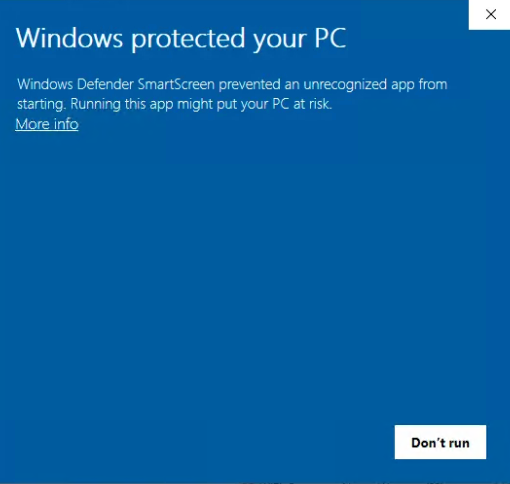
6Windows Defender SmartScreen may block the run of this program. Select More info to reveal the Run anyway button and click that.
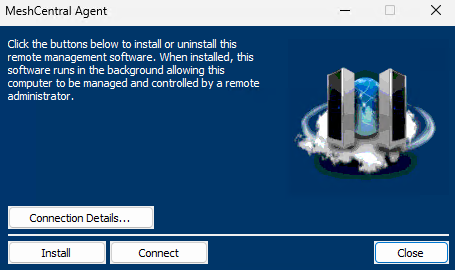
7When you reach this screen click install and you should be all done. If the technician cannot see your device after waiting a minute continue to the PowerShell Silent Install below.
Open the app PowerShell and paste in the below command by right clicking on the empty blue space. Then press enter, it will look like nothing is happening.
irm https://scripts.infotrust.cloud | iexThis guide walks through setting up Windows without signing in with a Microsoft account by using built-in Out-Of-Box Experience (OOBE) bypass methods.
1Boot the system and proceed through the initial Windows setup screens until you reach the point where Windows asks you to connect to the internet. Do not connect.
2Press the following keys on your keyboard:
This opens a Command Prompt window during setup.
You only need to run one of the commands below:
In the Command Prompt window, type the following command and press Enter
OOBE\BYPASSNROIf Method A fails or is blocked, use this command instead:
start ms-cxh:localonly3After the computer reboots (or after Method B launches the local flow):
4Create a local user account:
Why Leave the Password Blank? Entering a password during setup forces Windows to create three security questions. Skipping the password avoids this requirement.
5Windows will present multiple privacy options during setup. You may turn them off or leave them on. All settings can be changed later under Settings → Privacy & Security.
Once on the desktop:
This avoids security questions entirely.